Understanding PNG Files: A Guide to Opening and Converting Image Formats
PNG is a lossless image format known for crisp graphics and transparent backgrounds. Learn what PNG files are, when to use them, how to open and convert them, and how PNG compares with JPG, GIF, and WebP.
PNG stands for Portable Network Graphics. It is a raster image format, which means each picture is made from tiny colored squares called pixels. The format keeps image data intact with lossless compression and can preserve transparent backgrounds.
What Is a PNG File?

You have probably seen PNG files many times without noticing. A crisp logo on a website or a screenshot from a phone is often a PNG. It is a sharp, flexible image format that keeps its quality and can have a clear background. Most browsers and image-viewing apps can open one without extra software.
What Is the PNG File Format?
A file format is a set of rules for storing a picture. PNG is especially useful because it combines lossless compression, transparency, and support for millions of colors.
- Lossless compression: PNG can reduce file size without throwing away picture data. The image looks the same when opened again. JPG uses lossy compression, which discards some detail to save space.
- Transparency: PNG supports an alpha channel, so pixels can be fully or partly see-through. A logo can sit on different backgrounds without a white box around it.
- Millions of colors: PNG can represent about 16 million colors, while the older GIF format is limited to 256.
PNG 8 and PNG 24, in plain words
PNG 8 uses a palette of up to 256 colors and can produce smaller files. PNG 24 supports millions of colors, which can look richer but usually takes more space.
A quick bit of history
GIF was a common web image format in the early days, but its compression method was patented. Developers wanted a free alternative. The first PNG proposal appeared in January 1995, and the first version followed in October 1996. PNG later became an international standard that can be used without a patent license. There is even a familiar joke that PNG means “PNG's Not GIF.”
What Is a PNG File Used For?
PNG works well when you need clean edges, readable text, or a transparent background. Common uses include:
- Logos and icons
- Screenshots, charts, graphs, and infographics
- Images with lots of text
- Website graphics and buttons
- Digital signatures
Text-heavy images such as screenshots, page layouts, and scanned documents are often a good fit for PNG. A transparent signature, for example, can sit on a form without covering the text underneath it.
W3Techs reported PNG on 76.4% of websites in June 2026, compared with 20.5% for WebP. That gives a sense of how widely the format is used, even as newer formats continue to grow.
PNG Extension File: What Does .png Mean?
The .png at the end of a filename is its file extension. It tells your device what kind of file it is. On the web, servers identify the format as image/png, as specified by the W3C.
Animated PNG files (APNG) also use the .png extension but have a different internal structure. Renaming a file does not convert it: changing photo.jpg to photo.png leaves the image data in JPG format. Use a converter to change the actual format.
Logos and PNG Images: Why Designers Use Them
A transparent background and sharp edges make PNG convenient for logos on websites, slides, and social posts. Export a logo at a sufficiently large size, avoid stretching a small image, and check it on both light and dark backgrounds. Keep a vector original as your master file: vector artwork is built from math and can scale without becoming blurry, while PNG is a handy pixel-based version for everyday use.
PNG vs JPG vs GIF vs WebP
- PNG: Lossless, supports transparency, and often has larger files. Best for logos, screenshots, and graphics.
- JPG: Lossy, usually smaller, and does not support transparency. Best for photos.
- GIF: Limited to 256 colors and mostly used for simple animations.
- WebP: A newer format that can offer small files and transparency; some older apps may not open it.
A simple rule of thumb: use JPG for photos and PNG for graphics that need crisp edges or a clear background.
How to Open a PNG File
Almost every device can open a PNG:
- On Windows or Mac: Double-click the file to open it in your default photo app. If that does not work, right-click and choose an image app from “Open with.”
- In a browser: Drag the file into a Chrome, Edge, Firefox, or Safari window.
- On a phone: Tap the file in your Photos, Gallery, or Files app.
- In an editor: Open it in an image editor such as Photoshop, Microsoft Paint, or GIMP.
How to Convert a PNG
You might convert a PNG to make it smaller for a website or email, meet an app's file requirements, or use it in another workflow. You can use a built-in app, an online PNG converter, or an image editor.
Option 1: Use a built-in app
In Microsoft Paint on Windows, open the PNG, choose File and Save as, select a format such as JPEG, then save the new file. On a Mac, open it in Preview, choose File and Export, select a format, and save.
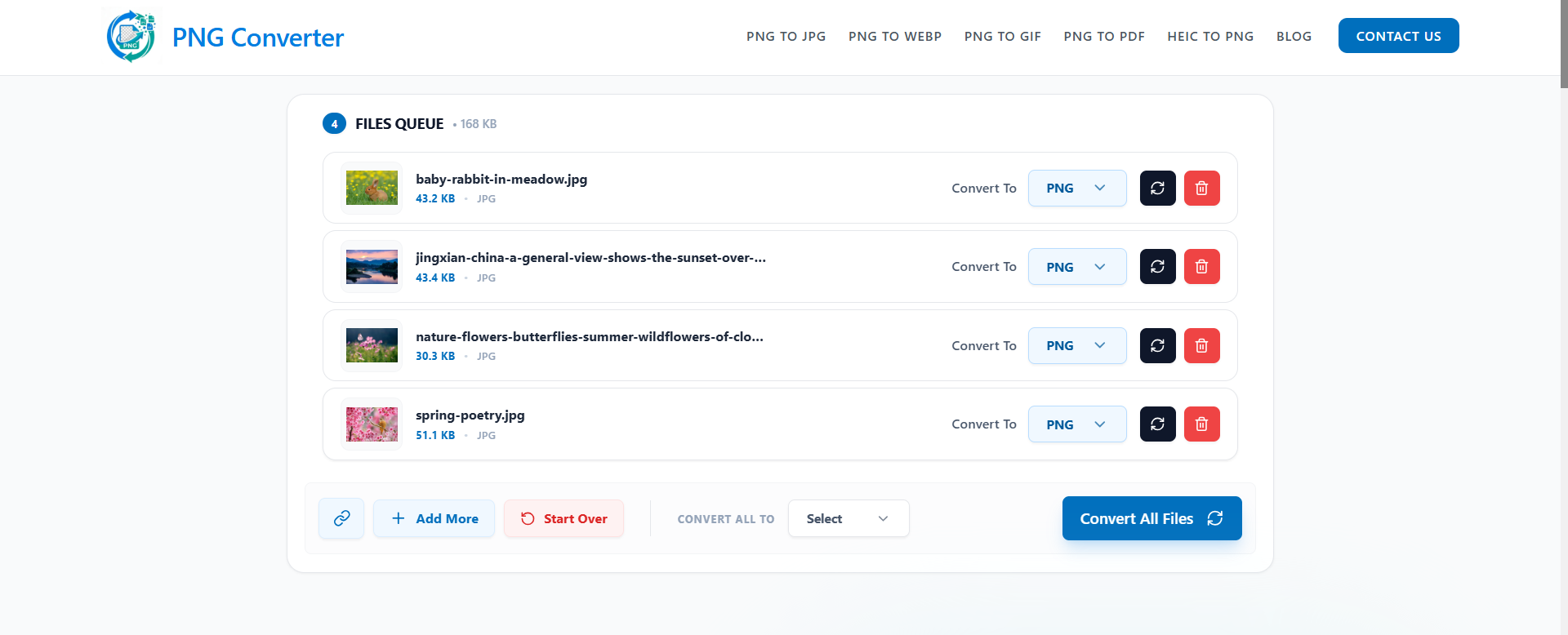
Option 2: Use an online PNG converter
Most online converters follow the same steps: upload your PNG, pick an output format, convert, and download the result. Choose a tool you trust. Avoid uploading private images, such as ID cards, to an unfamiliar service.
Option 3: Use an image editor
Open the PNG in an editor such as Photoshop, choose Save As or Export, and pick the format you need.
Smart things to know before you convert
- Converting PNG to JPG removes transparency; transparent areas become a solid color, often white.
- Converting JPG to PNG cannot restore image quality that was already lost.
- Keep the original file so you can make another copy later.
- Check the output size; sometimes a PNG can be larger than the original.
- PNG does not support CMYK color. If you are preparing something for print, ask the print shop which format it prefers; PDF is often a suitable option.
Common PNG Problems and Easy Fixes
- The file is too big: Resize or compress it. For photos, JPG or WebP may reduce the file size.
- The background looks black: The app may not support transparency, or the image may have been saved as JPG.
- The logo looks blurry: It may have been exported too small. Export a larger version from the original.
- The PNG will not open: The file may be damaged or may use a different format despite its extension.
What Is New With PNG? The Third Edition
The W3C PNG Specification Third Edition became an official Recommendation on June 24, 2025, the first major update since 2003. It officially adds support for:
- Animated PNG (APNG)
- HDR, for richer and brighter color
- Exif metadata, the camera information stored in many photos
Older guides may say PNG cannot store Exif data. That was true for years, but the newer standard changes it; support in apps may take time to catch up.
Frequently Asked Questions
What is a PNG file?
It is an image file in the Portable Network Graphics format. It uses lossless compression and supports transparent backgrounds.
What is a PNG file used for?
PNG is commonly used for logos, icons, screenshots, charts, and web graphics. It is also useful for signatures and images that need a clear background.
Is PNG better than JPG?
It depends on the image. PNG is better for sharp graphics and transparency; JPG is often better for photos where a smaller file matters.
Does PNG support transparency?
Yes. Its alpha channel lets parts of an image be fully or partly see-through.
Is PNG a raster or vector file?
PNG is raster: it is made of pixels. SVG is a common vector format.
Can I convert PNG to JPG without losing quality?
JPG is a lossy format, so some detail can be lost. A high-quality setting can make the difference difficult to notice.
Do I need a license to use PNG?
No. PNG is an open format that can be used freely.
Final Thoughts
PNG keeps graphics clean, supports clear backgrounds, and works almost everywhere. Open it with an app you already have, or convert it when you need another format. Keep your original PNG safe, then experiment with copies.
About the Author
Daniel Brooks is an AI industry specialist who writes about image formats, digital tools, and everyday workflows. His goal is to explain tech topics the way a friend would, in plain words.